Priority Groups Beta
Put your first-choice growers' listings first — and let the backups step in automatically when they sell out
What Priority Groups Do
Some markets carry the same item from more than one source — a direct grower's salad mix and a food hub's, say — and want customers buying from the direct grower first. Before priority groups, that meant hand-toggling the backup listings unavailable and back, all cycle long.
A priority group makes it automatic. You gather the similar listings into one group and give each a tier: Tier 1 is your first choice, Tier 2 the backup, Tier 3 the backup's backup. While any Tier 1 listing in the group has stock, the Tier 2 and 3 listings are hidden from customers — they simply don't appear on the shelf. The moment every Tier 1 listing sells out, Tier 2 appears automatically. If Tier 1 restocks, Tier 2 steps back out of the way, just as automatically.
When Does a Listing Count as Sold Out?
Each group has one setting: "Treat as sold out when the quantity is … or less". It starts at 0 — a listing counts as sold out when its quantity reaches zero. Raise it to open the backups early: set it to 2, and the backups appear while your first-choice grower still has 2 left.
A listing also stops counting as "in stock" — and stops holding its backups off the shelf — whenever it wouldn't be buyable anyway:
- the listing is marked unavailable,
- its grower is on vacation, or inactive,
- or its quantity is at or below the group's threshold.
What Customers See
A held listing is hidden from the shelf entirely — customers don't see a "not yet available" placeholder; the listing is simply absent, the same as if it were marked unavailable. If someone tries to add a held item (say, from an old link), they'll see: "This item isn't available right now — the market is prioritizing other growers' stock first."
Setting Up a Group
- From your admin page, open Product Management and choose Priority Groups (or go to
/products/priority-groups). - Create a group and name it after the item — "Salad mix", "Eggs", "Bone broth".
- Use Add a listing to search and add — the results stay put, so you can add several in a row. Every listing starts at Tier 1; use the tier buttons on each row to move the backups down. A listing can only belong to one group — adding it somewhere else moves it.
- Adjust the sold-out threshold if you want backups opening before the very last unit sells.
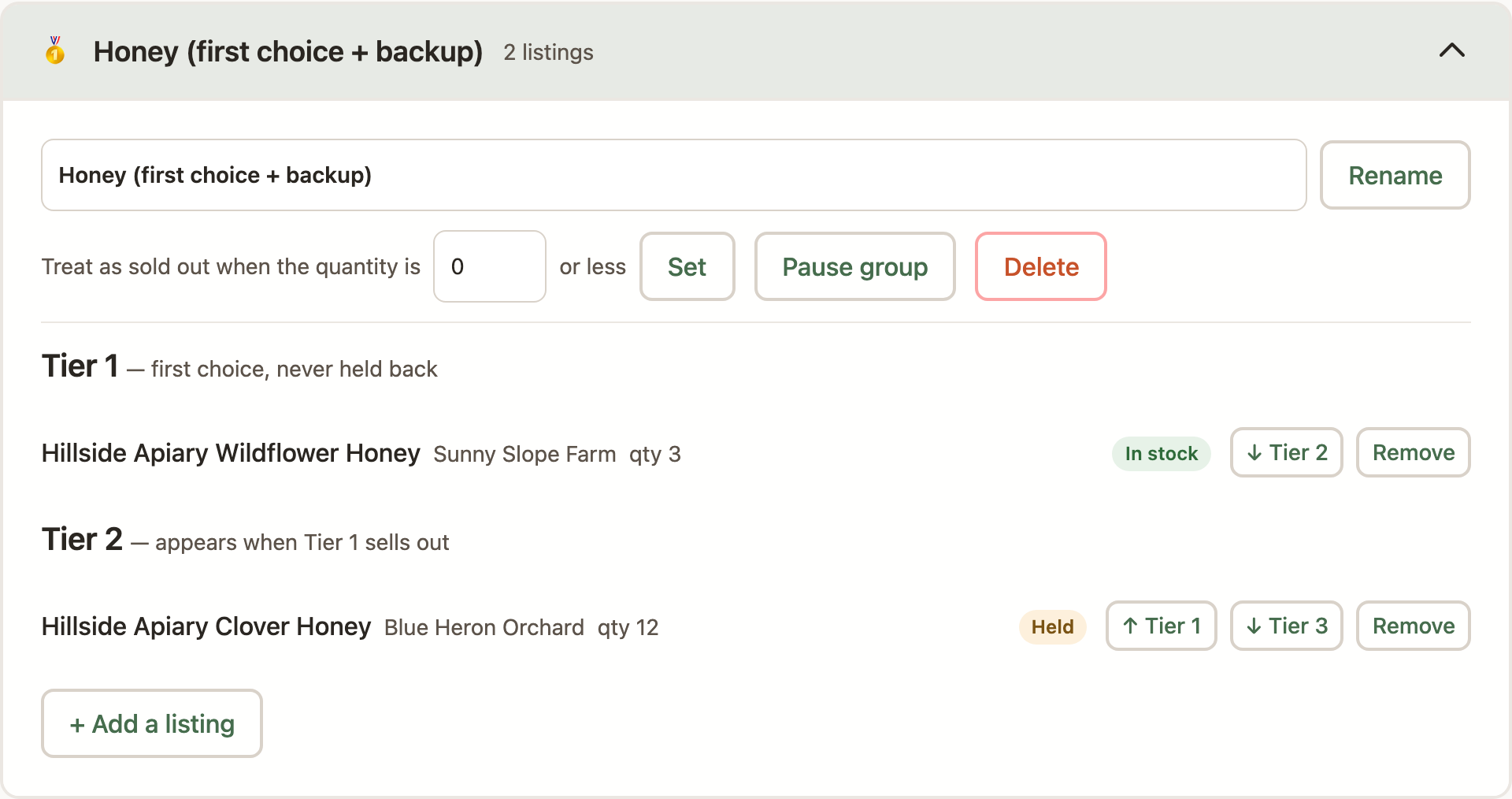
Each listing in the group shows a live state chip: In stock, Sold out, or Held (hidden while a lower tier has stock). In edit mode on the market page, every grouped listing shows you its marker — group name, tier, and whether it's currently held or live — so you can see where everything stands while you edit. Growers see a simpler "Held by priority group" badge on their own held listings; customers never see any of it.
Pausing vs. Deleting a Group
Pausing a group switches off the priority behavior while keeping your whole setup. While a group is paused, none of its listings are held back — every tier is on the shelf under its ordinary availability, exactly as if the group didn't exist. Your tiers, threshold, and membership all stay put, and nothing is ever changed on the listings themselves. Hit Resume and the holds come back immediately, recalculated from current stock.
Pausing is handy when you want everything sellable for a while — a holiday market, a bumper week — or when you're reorganizing a group's tiers and don't want holds shifting underneath you while you work.
Deleting a group also returns every listing to normal availability, but discards the grouping itself — the tiers and threshold are gone. Nothing happens to the products either way; a group only ever controls what's visible on the shelf.
Who Can Manage Groups
Priority groups are market policy, so only market managers can create and edit them. Growers see the badge on their own held listings but can't change group membership. The feature itself is enabled per market — if you don't see Priority Groups on your admin page and want it, contact [email protected].