Daily Market Operations
Your weekly workflow guide for managing an online farmers market
Understanding Your Market's Rhythm
Most online farmers markets follow a weekly cycle with distinct phases:
Ordering Phase
Example timing: Monday 6am - Wednesday 6pm
Customers browse and place orders
Fulfillment Phase
Example timing: Thursday - Friday
Growers harvest and prepare orders
Pickup/Delivery Phase
Example timing: Saturday morning
Customers collect their orders
Recovery Phase
Example timing: Saturday afternoon - Sunday
Wrap up, handle issues, prepare for next cycle
Customize Your Quick Action Buttons
The strip of buttons at the top of your admin page (the "Quick Actions" bar you'll see referenced throughout this guide) is yours to arrange. If you live in Order Check-In on pickup day but never touch Email Analytics, you can make the strip match the way you actually work.

Rearranging, removing, and adding buttons
- Click Customize at the end of the button strip. The strip switches to edit mode: each button gains arrows for moving it left or right, plus a ✕ for removing it.
- Use the arrows to put your most-used buttons first, and click ✕ on anything you never use.
- An "Add a button:" row appears below the strip with everything else you can add — a shortcut to every section of the admin page (like Ordering Schedule, Locations, Email Settings, Market Metrics, Automations, Market Operations, and the Sage Assistant) plus manager pages such as Order Check-In, Order Check-Out, Orders by Location, Unclaimed Orders, Payment Summary, Refunds, Add a Grower, and Documents.
- Click Done when the strip looks right.
The two pinned buttons
In edit mode, two buttons show a 🔒 instead of a ✕: Market Settings and Pay Balance. You can move them wherever you like, but they can't be removed — Market Settings because the strip is how you reach it, and Pay Balance (which only appears when your market has a software-fee balance to pay) because that's something nobody should lose track of.
Starting over
Changed your mind? While in edit mode, click "Restore the original buttons" and the strip returns to its default arrangement.
Example Weekly Schedule: Traditional Weekly Market
Here's one common approach many markets use. Your market's schedule will vary based on your community's needs:
Monday: Market Opens
Morning Tasks
- Open the market (if you're not using automated scheduling)
- Go to
/adminand click the "Market Manager" tab - Find the "Market Status" card and click "Open Market"
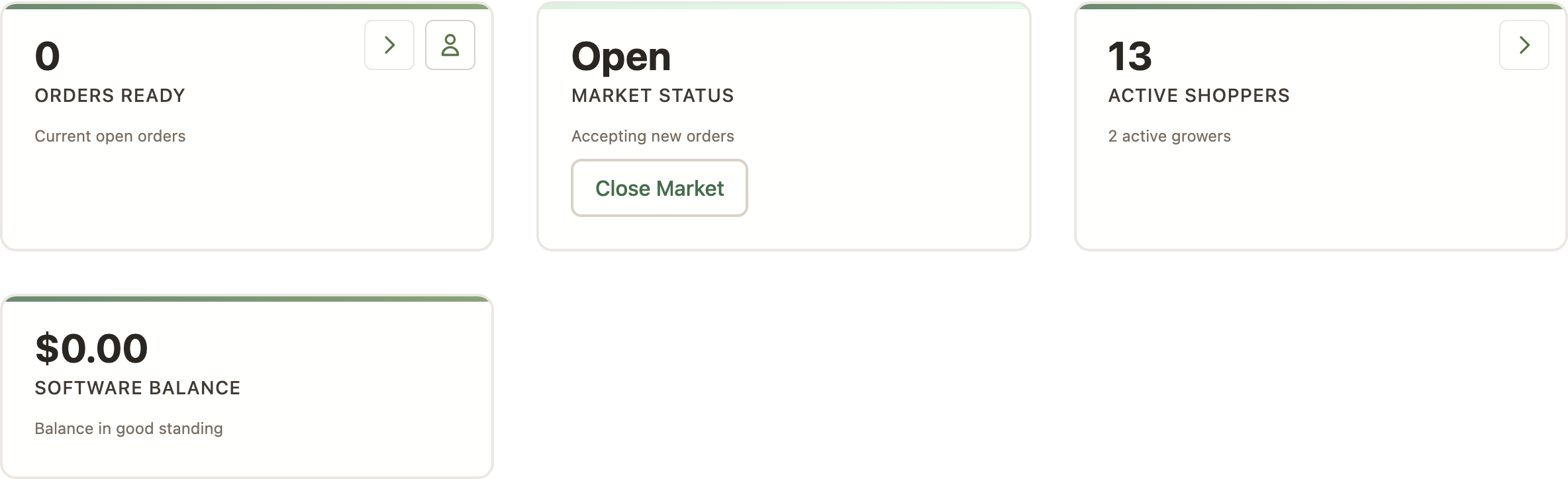
- Verify the status now shows "Open" with "Accepting new orders"
- Test that customers can add items to cart
- Go to
- Check for issues from previous week
- Click "View Orders" in the Quick Actions bar
- Look for any unresolved customer complaints
- Check if any refunds or credits are needed
- Review grower availability
- Expand the "Grower Management" section on your dashboard
- Check the Active Products count for each grower
- Look for any growers in "Vacation Mode" (shown with a badge)
- Check for any products that might sell out quickly
- Send opening announcement (optional)
- Open the "Weblog" page from the main navigation
- Write a new post, then choose "Publish Now" and check "Email subscribers when published" — this reaches everyone, not just customers who've already ordered
- Optionally check "Include product list" so subscribers see what's available
- Or post to social media: "Market is open! Order by Wednesday 6pm"
Throughout the Day
- Monitor for customer questions or support requests
- Check that orders are coming in normally
Tuesday: Mid-Ordering Period
Daily Check-ins
- Monitor order volume
- Is it typical for a Tuesday?
- Any growers approaching sellout?
- Respond to inquiries
- Customer questions about products
- Technical support issues
- New grower applications
- Check grower activity
- Are growers updating inventory as needed?
- Any products that should be marked unavailable? The Deactivate Zero Quantity Products button marks every product with a quantity of zero or less as unavailable in one click. It lives in two places: on your admin page under Market Operations → Product Management, and in the manager shortcuts at the top of your market's shopping page when you're in edit mode. (You can also schedule it to run automatically.)
- Carrying the same item from more than one grower? Priority groups (beta) can hold backup listings off the shelf automatically instead of hand-toggling them
Optional Marketing
- Send mid-week reminder email
- Highlight featured products or new items
- Share grower stories on social media
Wednesday: Last Day to Order
Morning/Midday
- Send deadline reminder
- Open the "Weblog" page from the main navigation
- Write a new post, then choose "Publish Now" and check "Email subscribers when published" — a deadline reminder should reach everyone who might still order, not just customers with open orders
- Message: "Last chance to order! Market closes tonight at 6pm"
- Or post to social media
- Monitor for unusual activity
- Check the "Orders Ready" stat card for unusual volumes
- Large last-minute orders
- Products selling out unexpectedly
- Be available for customer support (busiest ordering day)
Evening: Closing Time
- Close the market (6pm in this example)
- Go to
/admin, "Market Manager" tab - Click "Close Market" on the "Market Status" card
- Verify the status now shows "Closed" with "Not accepting orders"
- Go to
- Review final orders
- Click "View Orders" from Quick Actions or the Orders stat card
- Check for any obviously problematic orders
- Look for duplicate orders (same customer, multiple times)
- Note any unusually large orders to follow up on
- Generate reports
- Expand "Market Operations" section, scroll to "PDF Reports"
- Click "Sales PDF" for total sales report
- Click "Generate PDF" under "Packing Report" for order packing info
- For pickup locations: Click "By Location" buttons in the PDF Reports section
- Or use "Export Data" section for CSV downloads
- Notify growers
- Click "Send Harvest Emails" in the Quick Actions bar (full details: Sending Harvest Emails)
- Or expand "Communications" and use "Email Your Growers"
- Remind about fulfillment deadline
Thursday-Friday: Fulfillment Period
Manager Tasks
- Monitor grower progress
- Are growers packing their orders?
- Any growers reporting problems?
- Handle substitutions and changes
- Grower can't fulfill an item (crop failure, etc.)
- Process refunds or substitutions as needed
- Notify affected customers promptly
- Answer customer questions
- "Can I change my order?" (Usually no, but you can help)
- "When will my order be ready?"
- "Where do I pick up?"
- Prepare for pickup
- Confirm pickup location details
- Coordinate with volunteers if you use them
- Ensure growers know delivery/dropoff procedures
- Using multiple drop-off locations (beta)? Export your transfer manifests as a PDF and chase down any unassigned growers — see the Drop-off Locations guide
Common Issues to Watch For
- Growers contacting you about items they can't fulfill
- Orders with all products removed (customer has nothing to pick up)
- Customers asking to modify their locked orders
- Weather concerns that might affect pickup
Saturday: Pickup Day
Before Pickup Starts
- Send a pickup reminder (optional)
- Expand the "Communications" section in your admin panel
- Click "Compose Email" in the "Email Open Orders" card — this reaches only customers who have an order to pick up
- Message: "Your order is ready! Pickup is today from 10am–2pm"
- Use the grower check-in page (highly recommended)
- Go to
/orders/checkinto track grower deliveries - Mark products as delivered as growers arrive
- Identify any missing items before packing customer orders
- See Pickup Management Guide for details
- Go to
- Verify everything is ready
- Growers have delivered to pickup location (if applicable)
- Volunteers are in place (if applicable)
- Pickup area is organized
During Pickup
- Use the customer checkout page (highly recommended)
- Go to
/orders/checkoutto pack and track orders - Pack customer orders item by item, clicking "✓ Pack One" for each
- Handle missing items with "Missing + Refund" if needed
- Mark orders complete when customers pick up (this processes payment)
- See Pickup Management Guide for details
- Go to
- Be available (or have a volunteer available)
- Help customers find their orders
- Answer questions
- Handle problems on the spot
- Address issues immediately
- Missing items: Use checkout page to refund or adjust
- Quality concerns: Document and resolve
- Wrong order: Fix on the spot if possible
After Pickup Ends
- Handle unclaimed orders
- Contact customers who didn't pick up
- Decide on policy: hold until next week? Refund?
- Deal with perishables appropriately
- Collect feedback
- Talk to customers about their experience
- Note any recurring issues
- Thank volunteers and growers
Sunday: Recovery and Planning
Wrap-Up Tasks
- Resolve outstanding issues
- Process any needed refunds
- Follow up on unclaimed orders
- Address customer complaints
- Review the week
- What went well?
- What problems occurred?
- Any patterns to address?
- Financial housekeeping
- Verify payment processing worked correctly
- Review grower payouts (if this is your week to pay) — the Grower Checks (CSV), Total Sales Report (PDF), and Chargebacks buttons are at the top of the Grower Management section on your admin page
- Reconcile any refunds or credits
Planning Ahead
- Check calendar for upcoming holidays or schedule changes
- Plan any marketing or communications for next week
- Address any grower or customer requests
- Rest! You've earned it.
Alternative Schedule Examples
Not all markets follow the Monday-Saturday pattern. Here are other common approaches:
Twice-Weekly Market
Some markets run two shorter cycles per week:
- Cycle 1: Order Sunday-Monday, pickup Wednesday
- Cycle 2: Order Wednesday-Thursday, pickup Saturday
Benefits: Fresher products, more frequent income for growers
Challenges: More management time, more work for growers
Bi-Weekly Market
Some markets operate every other week:
- Order Week 1: Monday-Thursday
- Pickup Week 1: Saturday
- Off Week 2: No ordering or pickup
Benefits: Less intensive for small markets, easier for growers
Challenges: Customers may forget schedule, harder to build habit
Delivery Market
Markets that deliver instead of using pickup locations:
- Order Monday-Wednesday
- Growers prepare Thursday-Friday
- Delivery routes run Saturday or Sunday
Additional tasks: Route planning, delivery coordination, driver management
Farm Pickup Model
Customers pick up directly from individual farms:
- Order any time during the week
- Each grower sets their own pickup times
- No central coordination needed
Benefits: Less work for market manager
Challenges: Less convenient for customers, harder to build community
Essential Weekly Checklist
No matter what schedule you use, these tasks need to happen each cycle. Use this as a starting point and customize for your market:
Before Ordering Opens
- Verify all grower products are properly updated
- Check that pricing is current
- Test shopping cart functionality
- Prepare any marketing announcements
- Confirm pickup location and time
During Ordering Period
- Monitor customer questions and provide support
- Watch for unusual order patterns
- Send reminder as deadline approaches
- Check in with growers about availability
When Closing Orders
- Close market at scheduled time
- Review order summary for issues
- Generate grower reports
- Notify growers that orders are final
- Handle any last-minute problems
During Fulfillment
- Monitor grower progress
- Process substitutions and refunds
- Coordinate pickup logistics
- Communicate with customers about changes
Pickup Day
- Ensure pickup area is organized
- Have customer list and order details
- Be present or have coverage
- Handle issues on the spot
- Track pickups (if applicable)
After Pickup
- Follow up on unclaimed orders
- Process refunds and credits
- Review week's performance
- Address outstanding customer issues
- Plan for next cycle
Time-Saving Tips
Automate Where Possible
- Use automated scheduling for opening/closing
- Set up email templates for common messages
- Create standard operating procedures
- Use batch operations for refunds
Delegate Responsibilities
- Train volunteers for pickup coordination
- Have growers handle their own customer questions
- Share admin duties with co-managers
- Create a backup manager for vacation coverage
Batch Similar Tasks
- Answer all emails at once, twice a day
- Process refunds in batches after pickup
- Review orders once when closing, not continuously
- Schedule specific times for admin work
Communicate Proactively
- Set clear expectations upfront
- Create FAQs to reduce support questions
- Send weekly schedule reminders
- Use templates for common scenarios
Managing Your Time as a Market Manager
Market management can be time-consuming. Here's how to make it sustainable for different market sizes:
- Small market (5-10 growers, 20-50 customers): 5-8 hours/week
- Medium market (10-20 growers, 50-150 customers): 10-15 hours/week
- Large market (20+ growers, 150+ customers): 15-25+ hours/week
These are estimates and vary widely based on your market's specific procedures and automation level.
Peak Time Management
- Busiest times: Last day of ordering, day after closing, pickup day
- Lightest times: Middle of ordering period, day after pickup
- Plan your schedule around these rhythms
- Have backup coverage for peak times