Recipe Guide
Share your favorite recipes, connect ingredients to real market products, and shop straight from a recipe when ordering is open
Why Share Recipes?
Recipes bring our community together around the shared joy of cooking with fresh, local ingredients. When you share a recipe, you're not just telling people how to prepare a dish - you're helping fellow shoppers make the most of their market purchases and celebrating the bounty of local farms.
🌱 Inspire Others
Help shoppers discover new ways to prepare seasonal ingredients
📸 Share Your Success
Show off your culinary creations and inspire confidence in others
💬 Build Community
Connect with neighbors over shared meals and cooking tips
📚 Create a Resource
Build a collection of tried-and-true recipes using local products
🧺 Sell More Local Food
Tag market products to ingredients so shoppers can order them right from the recipe
Creating a Recipe
Anyone in the community can share recipes. Whether you're a grower sharing preparation tips or a customer with a family favorite, your contributions are welcome.
Find the Recipe Section
Look for the "Recipes" link in your market's navigation menu. On the recipes page, click "Add a New Recipe" or the "+" button.
Fill in the Basics
Give your recipe a descriptive name and write an introduction that tells the story.
"I first tried this stir-fry when visiting friends in the mountains. It's become our go-to meal for using up root vegetables, and the kids actually ask for seconds!"
Add Recipe Details
- Source: Where did you learn this recipe?
- Servings: How many people does it feed?
- Dietary tags: Mark it as vegetarian or vegan if applicable
List Your Ingredients
Add each ingredient with quantity, unit, and description. The optional Shopping Keyword pre-fills the product search when someone tags a market product to that ingredient, so pick the word shoppers would search the market for.
- Quantity: 2
- Unit: cups
- Description: diced root vegetables
- Shopping Keyword: carrots
Write Clear Instructions
Break down the preparation into numbered steps. Write like you're explaining to a friend - clear and encouraging, not clinical.
"Heat your largest skillet over medium-high heat. Once it's nice and hot, add the oil and toss in your veggies. Let them sizzle!"
Too brief:"Cook vegetables in oil."
Add a Recipe Photo (Optional)
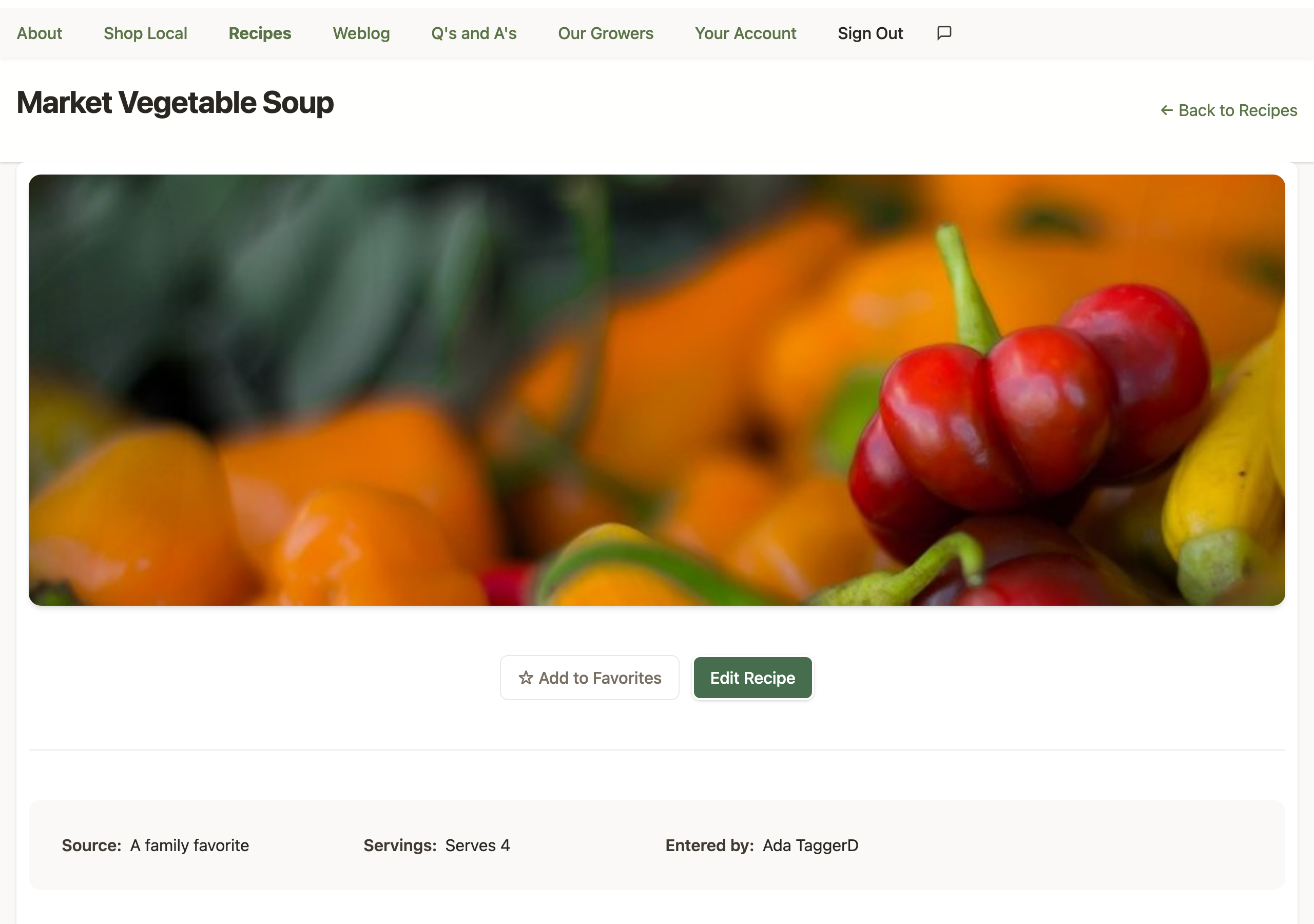
The recipe form has a photo field: "Do you have a photo of this recipe?" Upload a JPEG, PNG, or HEIC image and it's processed automatically. Your photo appears as a banner on the recipe list and as a large banner at the top of your recipe page - visitors can click the banner to see the full, uncropped photo.
Skipped it the first time? No problem - you can add, replace, or remove the photo anytime you edit the recipe.
Publish and Share
Click "Add the recipe!" and your creation goes live. Share the link with friends or post it in your market's community channels.
Tagging Market Products to Ingredients
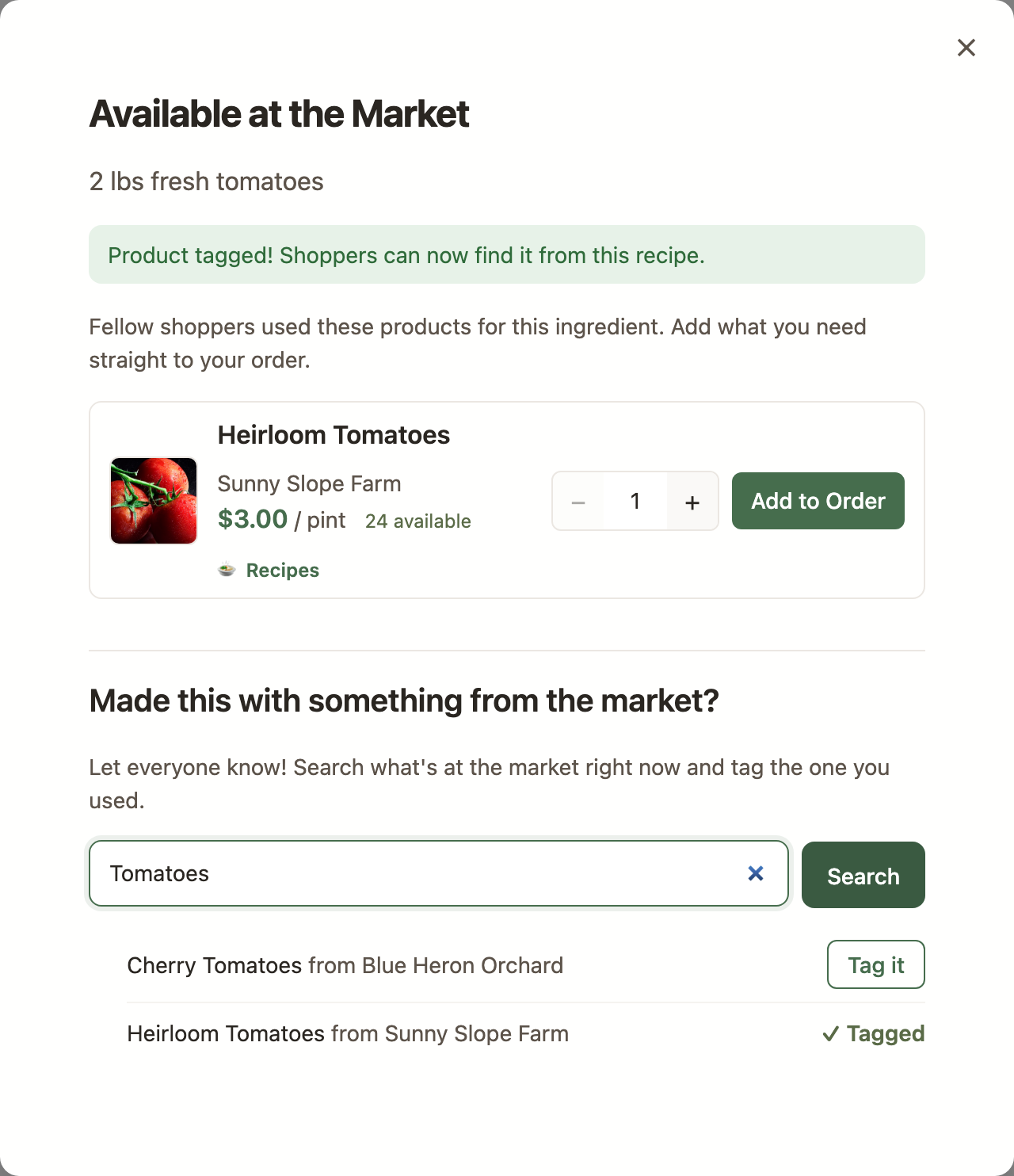
This is where recipes and the market come together. If you made a dish with items you bought at the market, you can tag those exact products to the recipe's ingredients - "I made this with these items I bought here." Any logged-in member of the market can tag products, whether or not they wrote the recipe.
How to Tag a Product
- Open a recipe and find the ingredient you want to tag
- Click the "+ Tag a product" chip next to the ingredient
- A search box opens, pre-filled with the ingredient's Shopping Keyword (if the recipe author set one) - but you can search for anything active at the market
- Find the product you used and tag it - that's it!
Shopping from a Recipe
When an ingredient has tagged products that are currently active at the market, you'll see a chip like "🧺 3 available at market" next to it. Click the chip to see exactly what you can buy.
What You'll See
- A product list for that ingredient: each tagged product with its grower, live price, and current availability
- Standard Add to Order controls: pick a quantity and add it to your order without leaving the recipe
- The usual ordering rules apply: when the market's ordering window is closed you'll see "Orders Closed," and visitors who aren't signed in see "Sign In to Order"
Discovering Recipes While You Shop
The connection works in both directions - products lead back to recipes, too.
- 🍲 Recipes badge: Products that appear in recipes show a "Recipes" badge on market product cards and list rows, so you know there are cooking ideas waiting
- Recipes in Quick View: Open a product's Quick View and look right under the product photo for "Recipes using this product" - each one links straight to the recipe
- Category filter: On the recipes page, filter by product category to find recipes whose ingredients have tagged products in that category - great for "what can I make with all this squash?" moments
- RSS feed: Follow your market's newest recipes in your favorite feed
reader at
/recipes/rsson your market's site
Commenting on Recipes and Sharing Photos
One of the best parts of our recipe feature is seeing how others have made a dish. This is where photos really shine!
Two Kinds of Recipe Photos
The recipe photo is the banner image the recipe author uploads on the recipe form - it represents the dish on the recipe list and at the top of the recipe page. Comment photos are for everyone else: when you make someone's recipe, add a comment with your photo to build a visual story of how different cooks make the same dish.
How to Add a Comment with a Photo
Open a Recipe
Navigate to any recipe you'd like to comment on.
Click "Add a Comment"
Scroll down to the comments section and click the button to open the comment form.
Write Your Comment
Share your experience, modifications, or tips. Be specific and helpful!
- "Made this tonight with beets from Johnson Farm - delicious!"
- "I added garlic and used less oil. Kids loved it!"
- "First time cooking turnips. This recipe made them taste amazing!"
Upload Your Photo
Below the comment box, you'll see a "Photo" upload field. Click to select an image from your device.
Photo Tips:
- Natural lighting works best
- Show the finished dish plated and ready to eat
- Get close enough to see details
- No need for perfection - we want to see real cooking!
Submit and Share
Click "Add Comment" and your photo will appear with your message. Others can click on the thumbnail to see the full-size image.
Why Comment Photos Matter
When multiple people share photos of the same recipe, it shows the wonderful variety of how dishes turn out in different kitchens. It builds confidence for newcomers who might be nervous about trying something new, and it celebrates our community's cooking creativity.
Saving Your Favorite Recipes
Found a recipe you want to make again? Star it! Favoriting recipes creates your personal cookbook of market-approved dishes.
How to Favorite a Recipe
- Open any recipe you'd like to save
- Look for the "Add to Favorites" button (☆) near the top of the recipe
- Click it, and the star will fill in (★) showing it's saved
- Access your favorites from the recipes page
Managing Your Recipes
Editing Your Own Recipes
If you created a recipe, you can edit it for 8 days after posting - plenty of time to fix typos, clarify steps, or swap the photo based on early feedback. Open the recipe and click the "Edit Recipe" button. After 8 days, ask your Market Manager to make changes for you; they can edit any recipe at their market anytime.
Market Manager Features
Market Managers have additional controls for recipes at their own market:
- Enable/Disable: Temporarily hide recipes without deleting them
- Edit Any Recipe: Make corrections or improvements as needed
- Delete Recipes: Remove recipes that don't fit the community
- Manage Comments: Remove inappropriate or spam comments
- Untag Products: Remove a tagged product from an ingredient if it was tagged by mistake
- Page Description: Add a welcome message to the top of the recipes page — it supports Markdown, and managers will see an "Add Description" button (or a pencil icon on an existing description) right on the page
These controls apply only at the manager's own market - recipes are per-market, and so is recipe management.
Tips for Great Recipes
📝 Be Descriptive
Use sensory details. Instead of "mix ingredients," try "stir until the batter is smooth and slightly glossy." Help people know what they should see, hear, and smell.
🍎 Highlight Local Ingredients
Mention specific products or growers when relevant. "Johnson Farm's purple carrots work beautifully here" connects the recipe to your market community.
🔧 Share Your Tweaks
If you adapted a recipe, say so! "I use half the butter the original calls for" or "Works great with any leafy green" helps others customize.
⏰ Be Realistic About Time
If a recipe needs advance prep or has hands-off cooking time, mention it. "Most of this is waiting time - actual work is about 15 minutes" sets expectations.
👨👩👧👦 Think About Your Audience
Note if something is kid-friendly, makes great leftovers, or works well for meal prep. These practical details help busy families plan.
💡 Suggest Substitutions
"Can't find kohlrabi? Try radishes or turnips instead." Flexibility helps when dealing with seasonal availability.
Common Questions
Yes! Most recipes need pantry staples like flour, oil, or spices. Just make sure the recipe features ingredients that are available from your local market.
No problem! The recipe photo is optional - share the recipe anyway. You can add a photo later by editing the recipe (within 8 days, or with your Market Manager's help after that), and others can add their own photos in the comments when they make it.
Any logged-in member of the market - you don't have to be the recipe's author. Only Market Managers can remove a tag, so if you tag the wrong product, just let your manager know.
The chip appears only when the ingredient has tagged products that are currently active at the market. If a tagged product goes out of season, the chip count drops - and comes right back when the product returns. That's part of the charm of shopping locally!
No - recipes belong to the market where they were created and appear only on that market's site. This keeps every recipe connected to products your community can actually buy.
Yes! That's exactly what comment photos are for. When you make someone else's recipe, add a comment with your photo to show how it turned out in your kitchen.
Look for the small "×" button on your comment. Market Managers can also delete comments if needed. Photos are deleted along with their comments.
Reach out to your Market Manager. They can help resolve attribution issues or edit recipes to add proper credit.
Yes, as long as you credit the source properly. Fill in the "Source" field with the cookbook title and page number or the website name. Respect copyright - don't copy lengthy content verbatim; paraphrase and add your own experience.
Photo Guidelines for Comments
✅ Great Photo Practices
- Take photos in natural light near a window
- Show the dish on a real plate, ready to eat
- Include a fork or napkin for scale and context
- Get close enough to see texture and color
- Shoot from a slight angle, not straight down
- Keep the background simple and uncluttered
❌ Photo Pitfalls to Avoid
- Using flash - it creates harsh shadows and washes out colors
- Photos in dim lighting where food looks gray or muddy
- Too far away - we can't see what the dish actually looks like
- Messy backgrounds with dirty dishes or clutter
- Photos that are blurry or out of focus
- Heavily filtered images that misrepresent colors
Building Community Through Recipes
Recipes are more than instructions - they're stories, traditions, and connections. When you share a recipe, you're inviting others into your kitchen and your life. When you comment on someone else's recipe, you're saying "I tried this, and here's what happened" - which is incredibly valuable.
Ways to Engage
- Try something new: Make a recipe you've never seen before
- Report back: Always comment when you make someone's recipe, even if you just say "Made this - loved it!"
- Ask questions: Not sure about a step? Ask in the comments - the creator will appreciate the engagement
- Share variations: Found a great modification? Add it as a comment to help others
- Connect products: Look for the 🍲 Recipes badge while you shop, and tag the market products you cooked with so others can shop from the recipe
- Seasonal spotlights: Share recipes that highlight what's abundant right now